To check if a computer is joined to a domain
1) On Windows Vista or newer:
Click Start>Right Click Computer, then Click Properties
On the left side, click Advanced system settings, then skip to step 3

2) On Windows XP:
Right Click on My Computer, then Click Properties
3) Click the Computer Name tab

4) Click the Change button

If the Domain: radio button is selected, it’s part of the domain. If the Workgroup: radio button is selected, it’s part of a workgroup and you’ll need to change to domain.
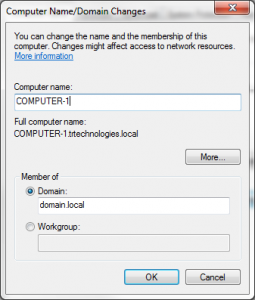
Click Cancel twice to exit out of this process
To Join or Rejoin to the domain
1) You’ll need domain administrator credentials and the domain name to complete the following
2) Complete steps 1-3 in the first section - 'To check if a computer is joined to a domain'
3) Click the Network ID… button

4) Make sure that ‘This computer is part of a business network;…’ is selected and click Next

5) Make sure that My company uses a network with a domain is selected and click Next

6) Click Next again

7) Type in your username, password and domain NOTE: don’t type the administrator name here, unless that’s the user you are adding to this computer

8) If this computer has the same name or if it was previously joined to the domain, you’ll get the following message, Select Yes

9) To add the user to this computer as a local user, click Next

10) Choose the account type for this user, then click Next

11) Click Finish, Then click OK on the System Properties window
You’ll be prompted to restart. Once the computer restarts it will be joined to the domain.